
How to Register Your CNDA2 Account
Overview
CNDA is migrating to a new system (CNDA2) that uses WashU Key for authentication instead of local usernames and passwords. All users must create a new CNDA2 account. The Cutover date was 8/30/2026.
Before You Start
- You must have a WashU Key
- WashU faculty and staff already have one
- External users must apply for one — see How to Obtain a WashU Key
- You will create a new account on CNDA2
- Your existing project access will be re-linked shortly after making an account
Step 1: Create Your CNDA2 Account
- Go to: https://cnda.wustl.edu
Important
- Do not enter anything in the USER or PASSWORD fields
- Do not click Register or Forgot Login
- Click WUSTL Connect instead to open the Register page.
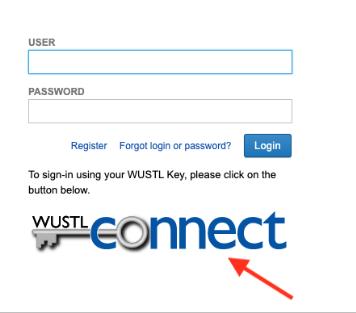
- Log in with your WashU Key
- Complete two-factor authentication if prompted
Step 2: Complete Registration
After authenticating, you will be redirected back to the CNDA2 registration page.
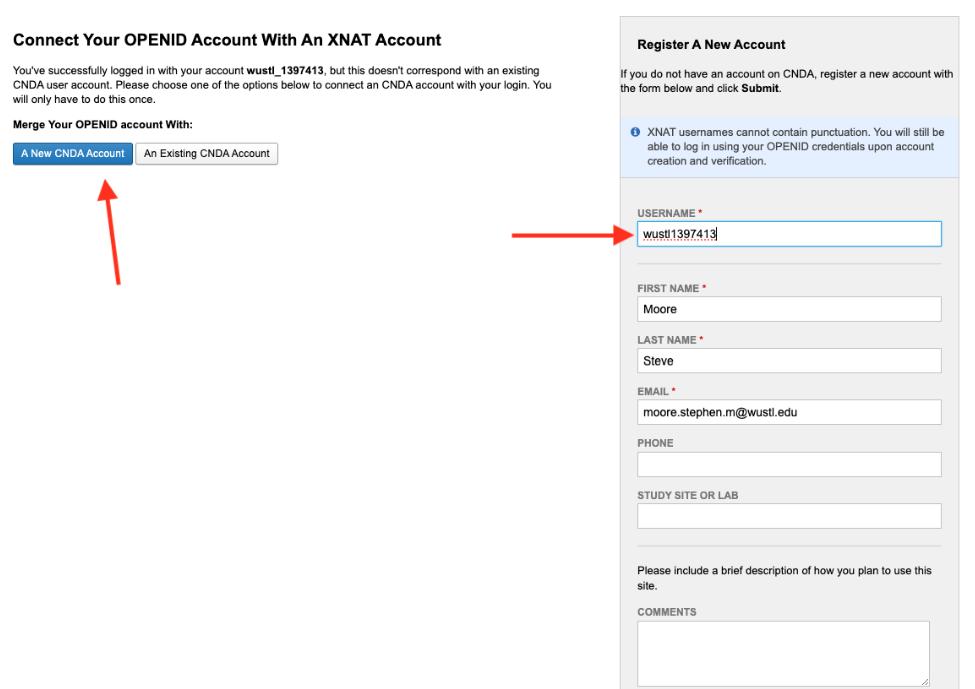
- Ensure A New CNDA Account is selected
- Replace the pre-generated wustl username (ex. wustl4320132) with your existing CNDA1 username
- If you do not have a CNDA1 username, please pick a username for CNDA2. Don't leave it at that default WUSTL number that is pre-filled.
Username Requirement
You must enter the username you currently use on CNDA1. If you use a different username, your project access cannot be linked automatically. Your WashU Key is assigned an internal ID that only WashU IT can see — your CNDA1 username is the only identifier we have to connect your new account to your existing projects.
- Verify your first and last name are in the correct fields — some browsers autofill them in reverse order, as shown in the screenshot above. Correct manually if needed.
- Click Register
Step 3: Notify CNDA-HELP via email of your registration
After registering:
- Please email CNDA-HELP at [email protected] to let us know you registered.
- That will allow us to restore your project access.
Notes
- cnda2.wustl.edu was a temporary address used during the migration period that no longer works. After cutover, CNDA2 has moved to its permanent address at cnda.wustl.edu.
- Scripts and XNAT Desktop Client users will need alias tokens after cutover — see How to Generate and Use Alias Tokens